Are you curious about how to print your OBD2 scanner report? You’re not alone.
Many car owners are eager to transform those mysterious codes into tangible reports they can analyze and share. Imagine having a clear, printed document that provides insights into your vehicle’s health. It could be the difference between a minor tune-up and a major repair.
Unlocking this knowledge doesn’t just save you time and money; it empowers you to take control of your car maintenance. With a printed report, you can confidently discuss issues with your mechanic, ensuring you’re not paying for unnecessary services. So, let’s dive into how you can easily print your OBD2 scanner report and take charge of your vehicle’s health. Keep reading to discover simple steps and tips that will make this process straightforward and hassle-free.

Credit: www.amazon.com
Choosing The Right Obd2 Scanner
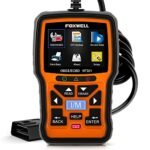
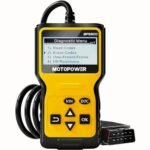
OBD2 scanners come in different types. The basic ones show error codes. Advanced scanners offer live data and diagnostic tools. Some scanners connect via Bluetooth. Others use a cable to connect. Choose based on your needs and budget.
Not all scanners fit all cars. Check compatibility before buying. Some scanners work with specific brands. Others support many types. Always ensure your car model is supported. This helps avoid frustration.
Important features include ease of use. Look for a clear screen. Read reviews about software updates. Good scanners offer quick results. Some provide battery health info. Choose a scanner with strong support.

Credit: www.ebay.com
Connecting The Obd2 Scanner
The OBD2 port is usually under the dashboard. It is close to the driver’s seat. Check near the steering wheel. Some cars have it under the glove box. The port is 16-pin and trapezoid-shaped. It might have a cover. Remove the cover to access it.
Take the scanner’s plug. Insert it into the OBD2 port. Make sure it fits snugly. The scanner should light up. This shows it is connected. Do not force the plug. It should slide in easily.
Turn on the car’s ignition. The engine can stay off. The scanner will start to read. Follow the prompts on the scanner. It might ask for car details. Input the details carefully. Wait for the connection to finish. The scanner will show a success message.
Retrieving Diagnostic Data
Connect the OBD2 scanner to your car. The scanner reads the error codes. These codes help find what’s wrong with the car. Each code tells a different story. You might see codes like P0300 or P0420. These codes indicate problems. Write them down for reference.
The scanner shows live data from your car. This includes engine speed and temperature. Watch these numbers closely. They help understand car health. Some numbers may go up and down. This is normal. Keep an eye on unusual changes.
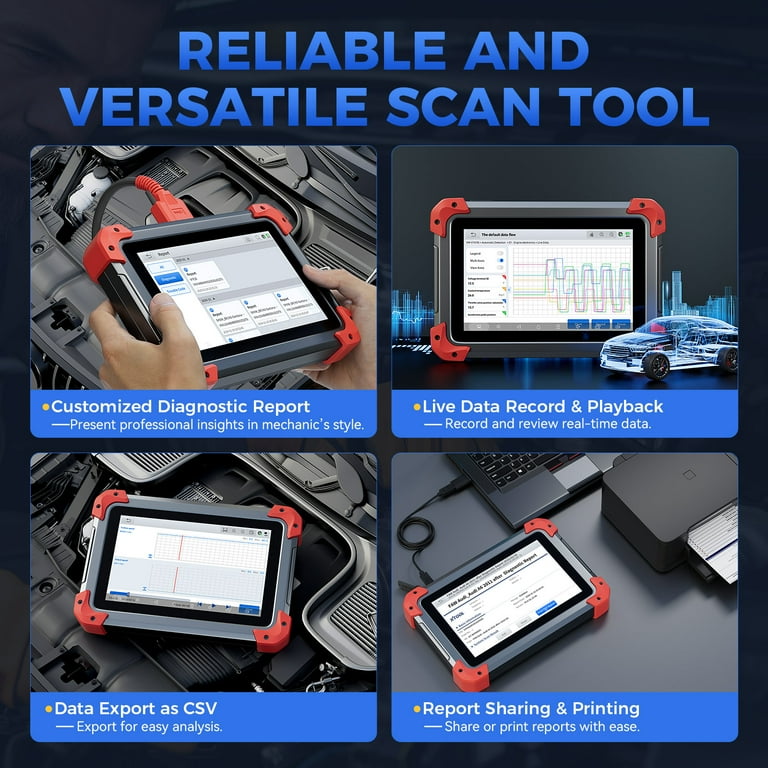
Save the diagnostic report on your device. This report is useful for future checks. You can print it out later. Many scanners have a save option. Find it in the menu. Make sure to save the report correctly.
Transferring Data To A Computer
Connect the OBD2 scanner to your computer with a USB cable. Make sure the cable fits both devices well. The scanner might need special software to share data. Install it if needed. Open the program on the computer. Check the scanner for a menu to send data. Pick the right option to move the report. Wait for the transfer to finish. Save the file on your computer.
Some OBD2 scanners have Bluetooth or wireless abilities. Turn on the scanner’s wireless setting. Open the computer’s settings to find wireless devices. Click on the scanner’s name to connect. Follow any steps to finish the link. Use the scanner’s menu to send the report. Make sure the computer gets the file. Save it in a safe place.
Find the folder with the OBD2 report. Right-click the file to copy it. Choose a spot on your computer to put the file. Right-click and pick paste to move it. Check the new location to see the report is there. Print the report with a printer. Make sure the printer has paper and ink.
Printing The Obd2 Report
First, choose a printer that works. Make sure it is connected. Check if it has enough paper and ink. A printer with a USB port is handy. Wireless printers work too. Select one that is near you. This makes it easy to collect the report.
Make your report look clear and neat. Choose a simple font. Bold important data. This helps in reading it easily. Align the text well. Avoid using too many colors. Black and white is fine. Double-check for any mistakes in the report.
Now, check the print settings. Look at the page size. It should fit the paper. Use preview before printing. This shows how the report will look. Press the print button to start. Wait a bit until it finishes. Collect the paper once done. Keep it safe for future use.
Troubleshooting Common Issues
Printing an OBD2 scanner report can be tricky. First, ensure the scanner is connected properly. Next, follow the device’s manual for printing instructions. Adjust printer settings as needed. If issues persist, check for software updates.
Connection Problems
Obd2 scanner must connect properly to work. Check if cables are plugged in. Inspect the port for dust or damage. Ensure the device is powered on. Sometimes, a loose connection causes problems. Adjust cables if needed. Restart the scanner and car.
Incomplete Reports
Sometimes, reports are missing data. Make sure the scanner is compatible with your car. Update the software for better results. Check if the settings are correct. Incomplete reports may need a reset. Ensure the scanner is fully functional.
Printer Errors
Printing issues are common. Ensure the printer is on and connected. Check for paper jams or low ink. Verify the settings on the scanner. Sometimes, printer drivers need updates. Test with another printer if possible.
Credit: www.walmart.com
Frequently Asked Questions
How Do I Connect My Obd2 Scanner To A Printer?
To connect your OBD2 scanner to a printer, first ensure the scanner supports printing. Use a USB cable or wireless connection, depending on the model. Follow the scanner’s manual for detailed instructions. Ensure your printer is compatible and properly set up to receive data from the scanner.
What Software Do I Need To Print Obd2 Reports?
Most OBD2 scanners come with proprietary software that supports printing. Check the manufacturer’s website for compatible software. Install it on your computer and follow the instructions to connect your scanner and printer. Ensure your software is updated for optimal performance and compatibility.
Can I Print Obd2 Reports Wirelessly?
Yes, many modern OBD2 scanners support wireless printing. Ensure your scanner and printer have Bluetooth or Wi-Fi capabilities. Pair the devices following their manuals. This method allows convenient and cable-free printing of your diagnostic reports directly from your OBD2 scanner.
Why Won’t My Obd2 Report Print?
If your OBD2 report won’t print, check the connections and ensure the printer is on. Verify that the scanner and printer are compatible and properly set up. Ensure any required software is installed and updated. Restart both devices if necessary to troubleshoot any connectivity issues.
Conclusion
Printing your OBD2 scanner report is straightforward. Follow the easy steps shared. This process helps keep your car’s health in check. Regular checks ensure safe driving. With printed reports, mechanics can quickly diagnose issues. Save time. Save money. Improve your car’s performance.
No technical skills needed. Just a few clicks. Always have your report handy. It’s a simple way to stay informed. Keep track of your car’s condition. Make smart decisions. Maintain your vehicle effectively. Keep your ride smooth and trouble-free. Stay proactive with your car care.

Emily started her career in digital marketing but quickly fell in love with the automotive niche. She believes great content should simplify complex topics — especially for car owners who just want practical advice. At RevivalCar, Emily ensures every article is easy to follow, well-researched, and genuinely helpful for readers across the U.S.